.svg)
Booking MCP (Model Context Protocol) allows you to use Apwide Booking directly from AI assistants like ChatGPT, Claude, and other MCP-compatible tools.
This article explains how to connect your AI assistant to Booking MCP and what you can do with it.
What Is Booking MCP?
Booking MCP extends Apwide Booking capabilities to external AI assistants.
For example, you can ask your AI assistant to:
-
"Find an available meeting room tomorrow from 10 AM to 11 AM."
-
"Book a Tesla for Friday afternoon."
-
"Reserve 2 parking spots next Monday."
Your assistant checks resource availability and creates bookings directly in Jira.
Available MCP Tools
Booking provides three MCP tools:
-
Get booking flows: Returns the Booking Flows configured in your Jira instance.
-
Find available resources: Searches for available resources based on dates, times, and capacity.
-
Create booking request: Creates a Jira work item to book a resource.
These are the same capabilities available through Rovo Skills.
How to Enable Booking MCP
An Atlassian administrator must enable Booking MCP for the Jira site.
-
Open Atlassian Administration.
-
Select your organization and Jira site.
-
Navigate to Apps → Sites → [your site], and then Connected apps.
-
Click View app details next to the Apwide Booking App.
-
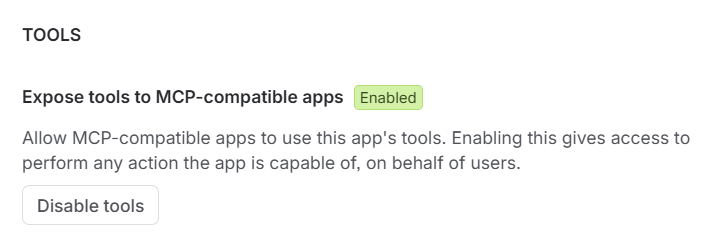
In the Tools selection, enable the Booking MCP tools.
How to Connect Your AI Assistant
Booking MCP is available at the following endpoint:
https://mcp.atlassian.com/forge/4a4206e4-5fbb-447e-9cba-588cf63c541e
Example: ChatGPT
Follow these steps to connect Apwide Booking MCP to ChatGPT:
-
Open ChatGPT Plugins.
-
Click Add → Add custom MCP server.
-
Enter the following details:
-
Name: Apwide Booking
-
Server URL:
https://mcp.atlassian.com/forge/4a4206e4-5fbb-447e-9cba-588cf63c541e -
Authentication: OAuth
-
-
Accept the security warning and click Create as a plugin.
-
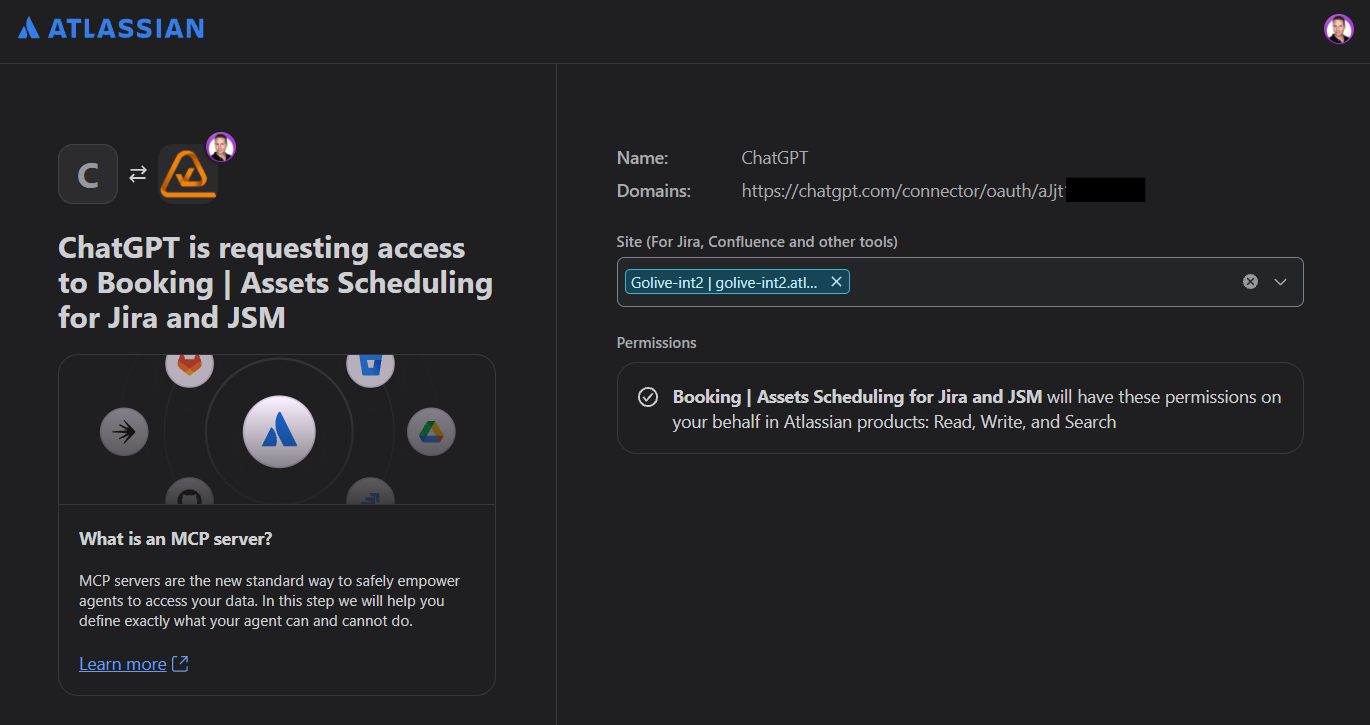
Install the newly created plugin and authorize access to your Atlassian account and Jira site.
Note: Custom MCP connections require a compatible ChatGPT plan and appropriate workspace permissions.
Create Your First Booking
Once connected, try booking a resource already existing in your Booking configuration, for instance:
"I'd like to book a Tesla X tomorrow from 8 AM until 3 PM."
Your assistant will search for available resources.
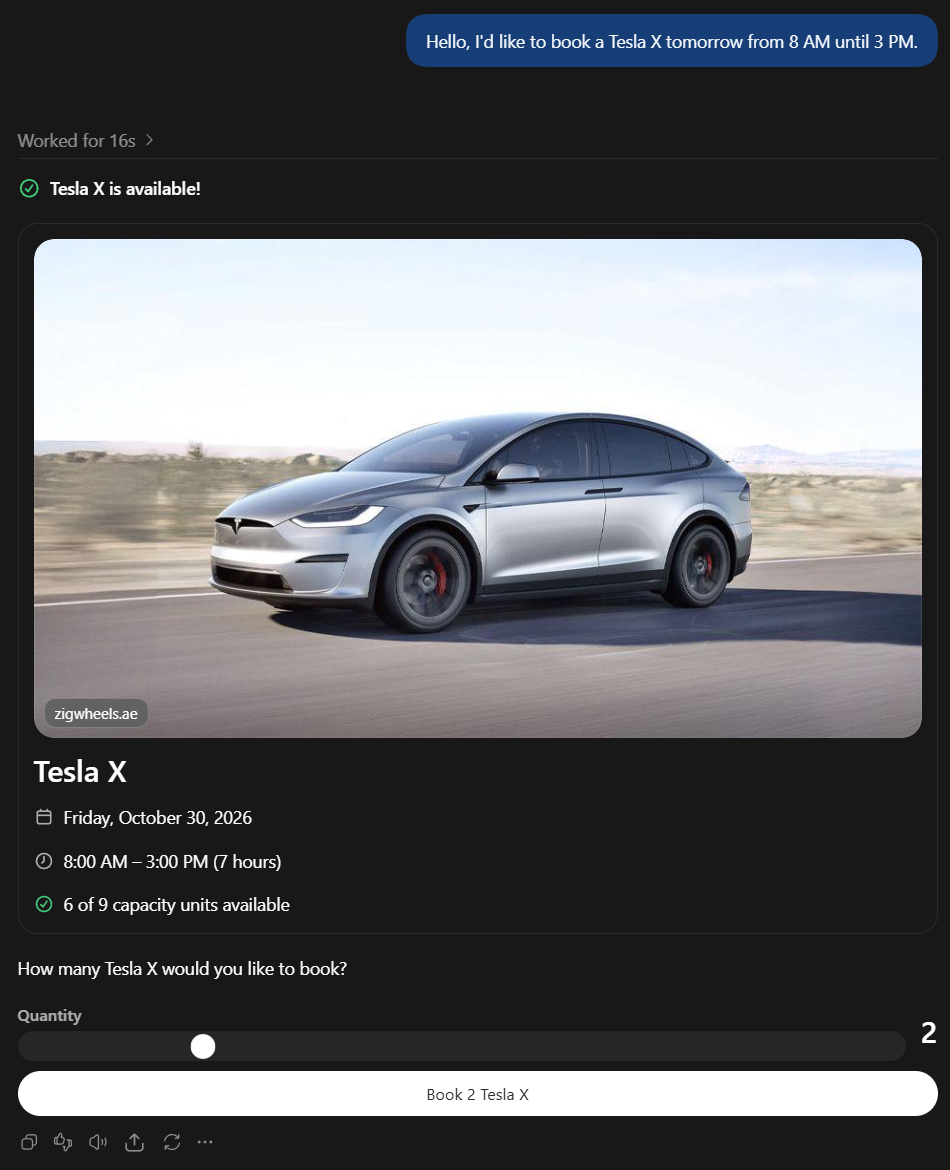
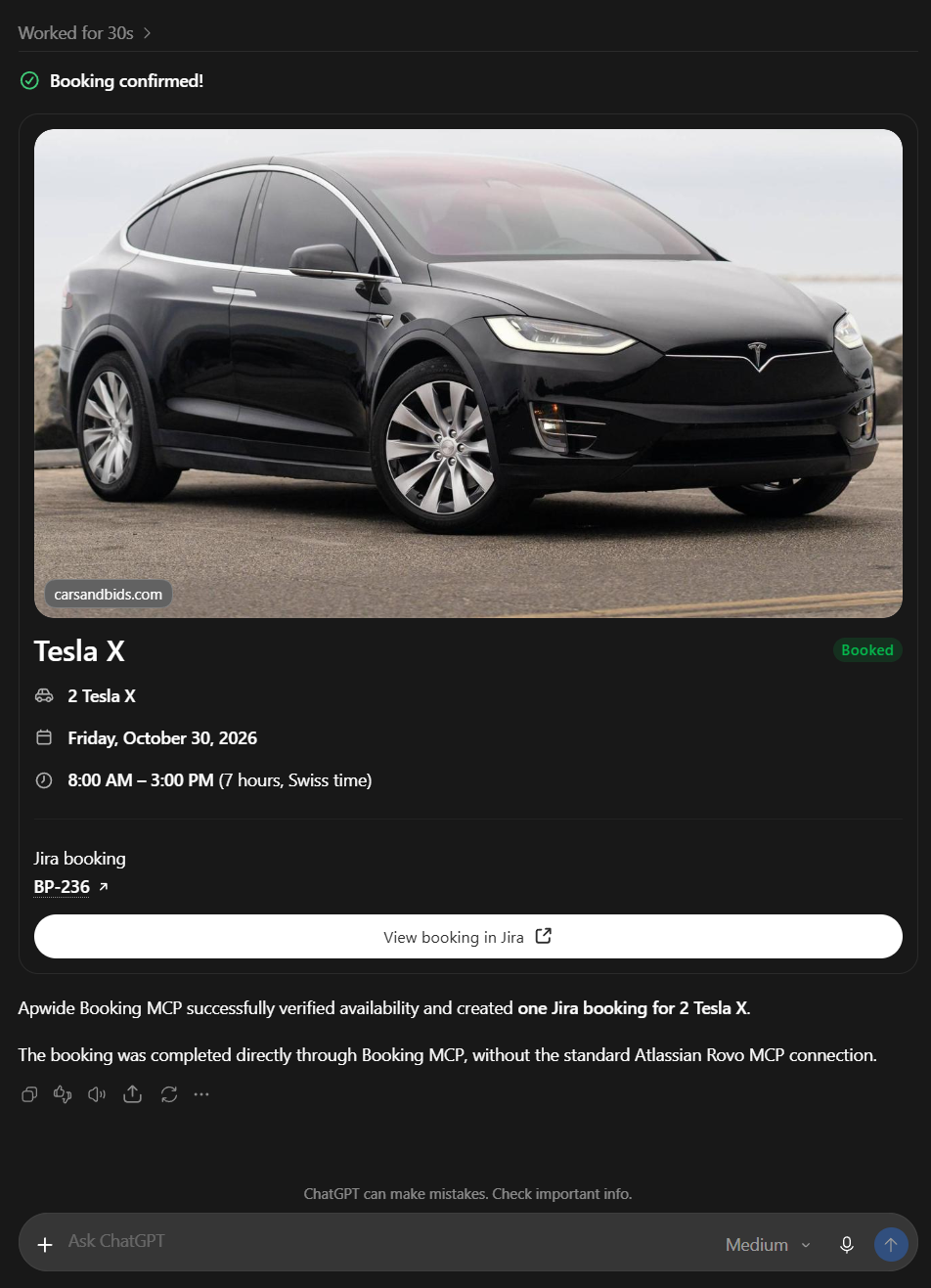
Then validate your booking. The assistant creates the booking and returns a link to the corresponding Jira work item.
Booking MCP vs. Rovo Skills
Both provide access to the same Booking capabilities.
-
Rovo Skills: Extend custom agents created in Atlassian Rovo Studio.
-
Booking MCP: Connect external AI assistants such as ChatGPT and Claude to Apwide Booking.
For more information, see Rovo Skills.