.svg)
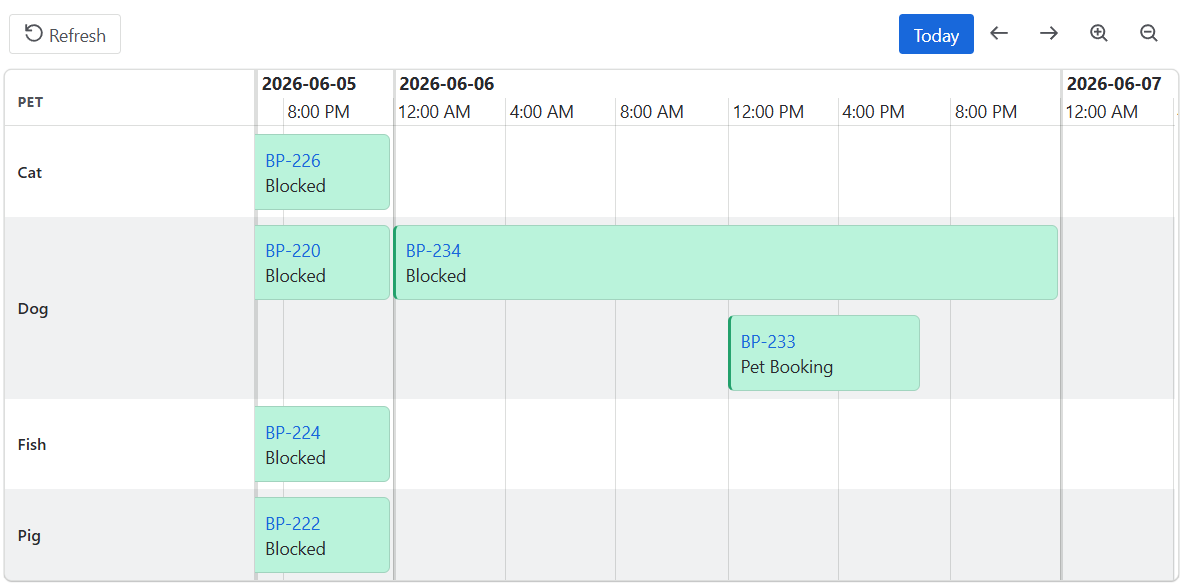
When someone books a resource, you may want to block this resource for the whole day.
Requirements
-
Booking Flow configured.
-
Access to Jira Automation.
-
Familiarity with creating automation rules and using smart values.
Configuration
Create a new Jira Automation rule with the following configuration:
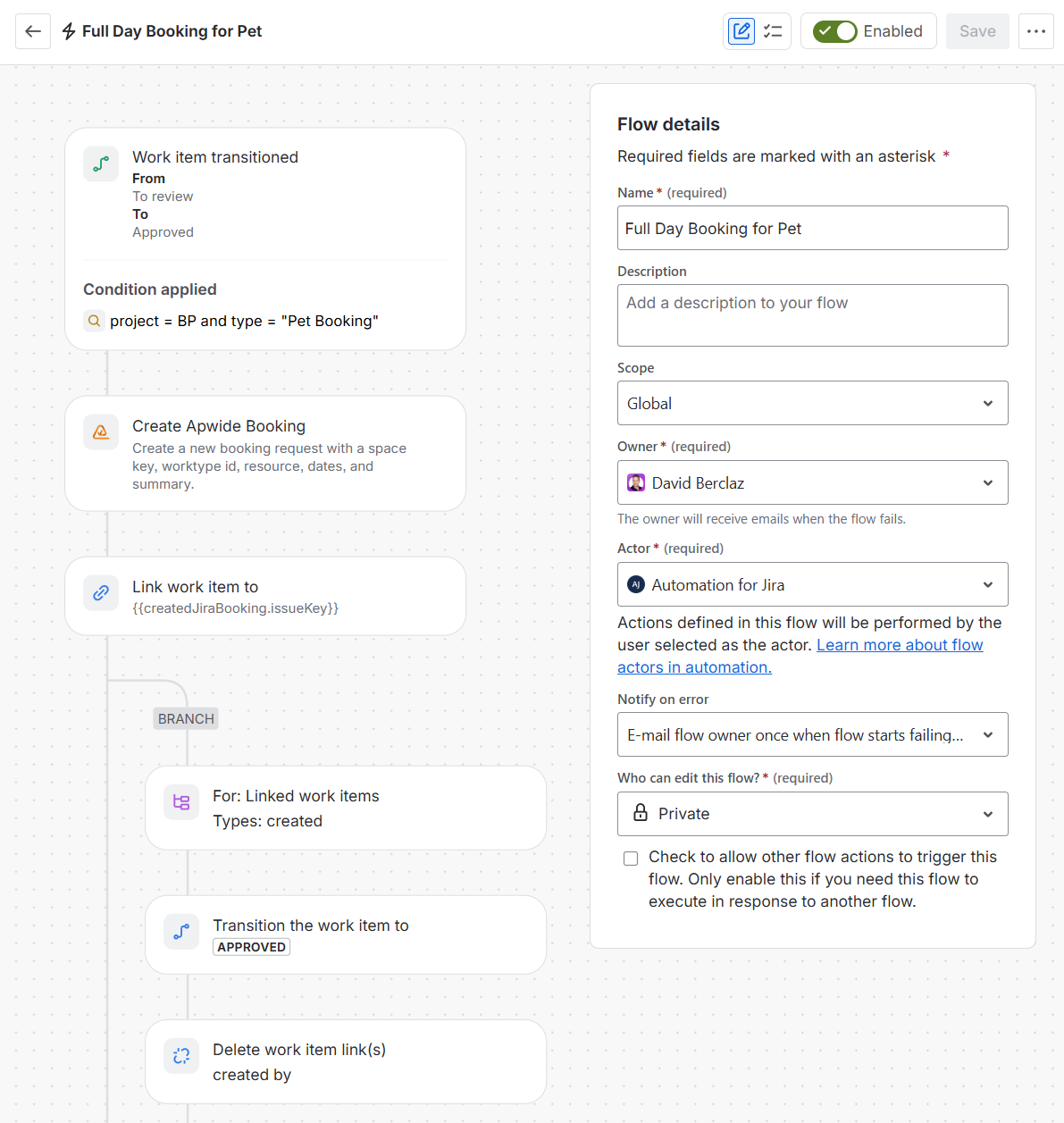
Trigger: Field value changed
The rule will be triggered when your booking request is approved.
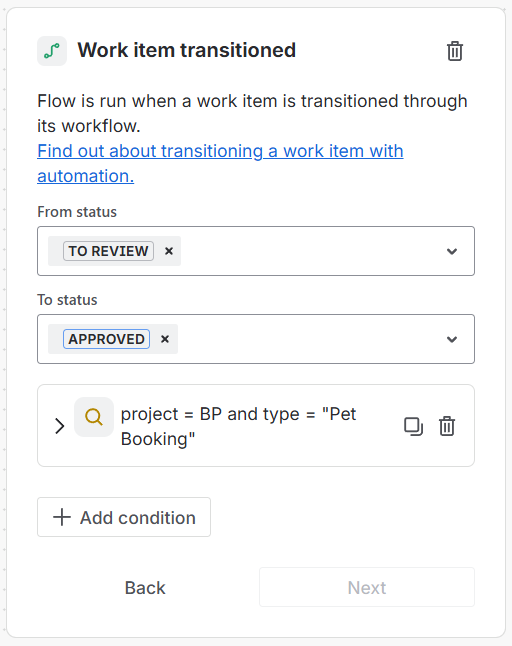
You can add a condition to only trigger the rule for the project and work type used by your Booking Flow.
Action: Create Apwide Booking
Create a second booking request that blocks the same resource for the whole day.
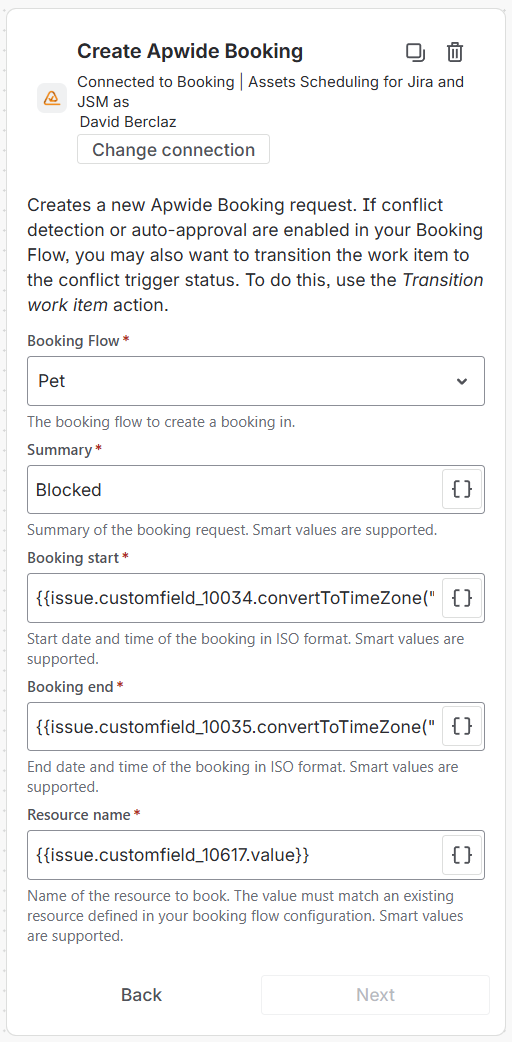
Booking start
{{issue.customfield_10034.convertToTimeZone("Europe/Zurich").withHour(0).withMinute(0).withSecond(0).jiraDateTime}}
Make sure you update your “Start time” custom field ID and the time zone of your resource
Booking end
{{issue.customfield_10035.convertToTimeZone("Europe/Zurich").withHour(23).withMinute(59).withSecond(59).jiraDateTime}}
Make sure you update your “Start time” custom field ID and the time zone of your resource
Resource name
{{issue.customfield_10617.value}}
Make sure you update your “Booking” custom field ID
Action: Link work item to
Link the second booking request to the first one.
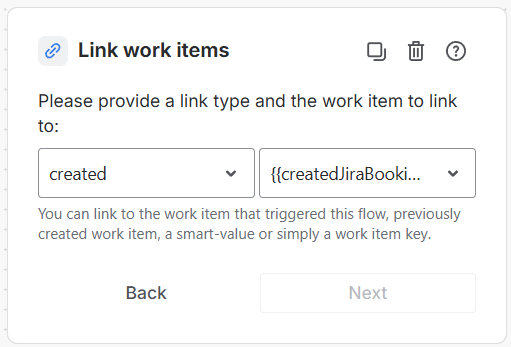
Link
{{createdJiraBooking.issueKey}}
Branch: Linked work items
Create a branch for the second booking request, so that we can access it.
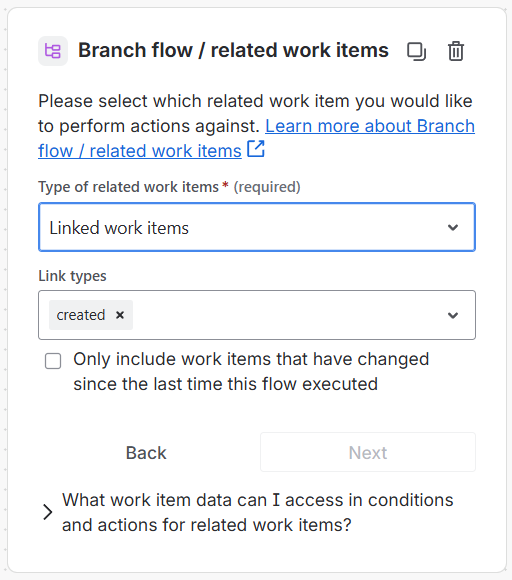
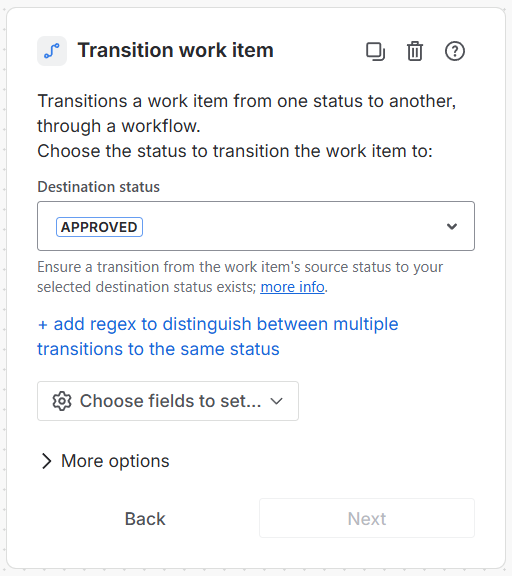
Action: Transition work item
Force the approval of the second booking request, even though it conflicts with the first booking request.
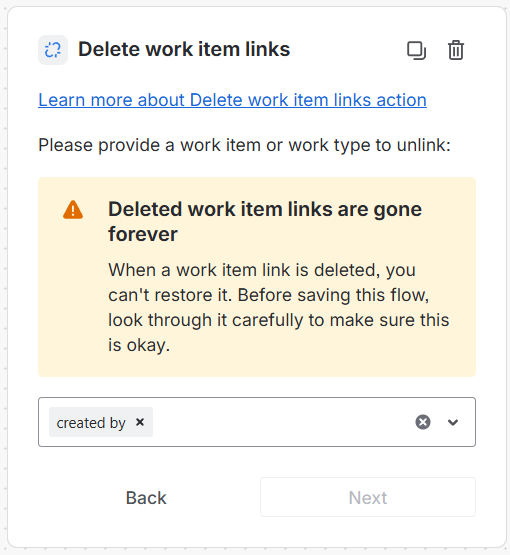
Action: Delete work item links
Remove the link that we created previously.
If you have enabled “Link conflicts” in your Booking Flow, another link will be created automatically between the two booking requests.
Need Assistance?
For support with Jira Automation with Booking, reach out to our Customer Portal.