.svg)
You may want to see the linked booking requests while browsing your Assets.
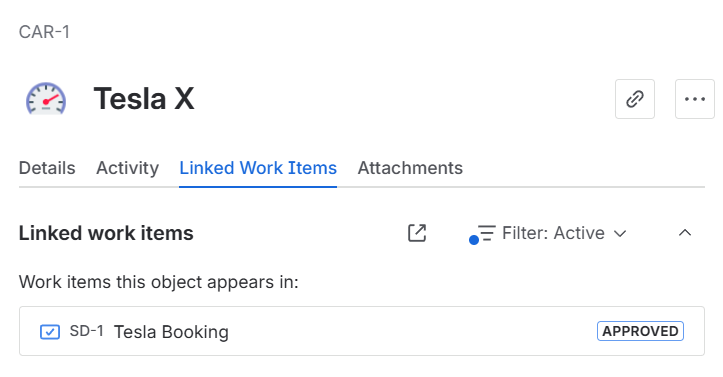
Requirements
-
Booking Flow configured with Jira Assets resources.
-
Access to Jira Automation.
-
Familiarity with creating automation rules and using smart values.
-
Jira Administrator permission if you must create a new Assets field (step 1).
Step 1: Assets object field
If not already there, create a new Jira custom field with the type “Assets objects”, and make sure it is available in context of your booking request (in can be visible or hidden from your screens).
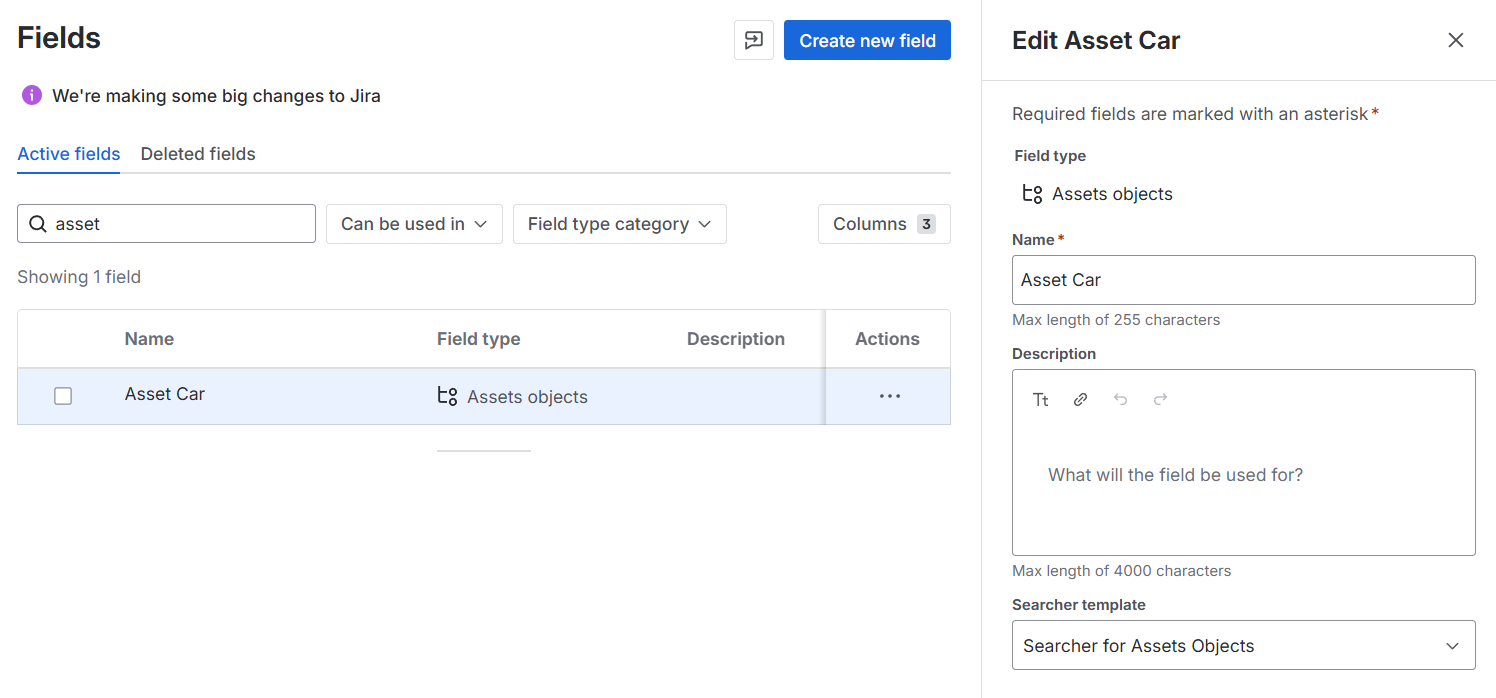
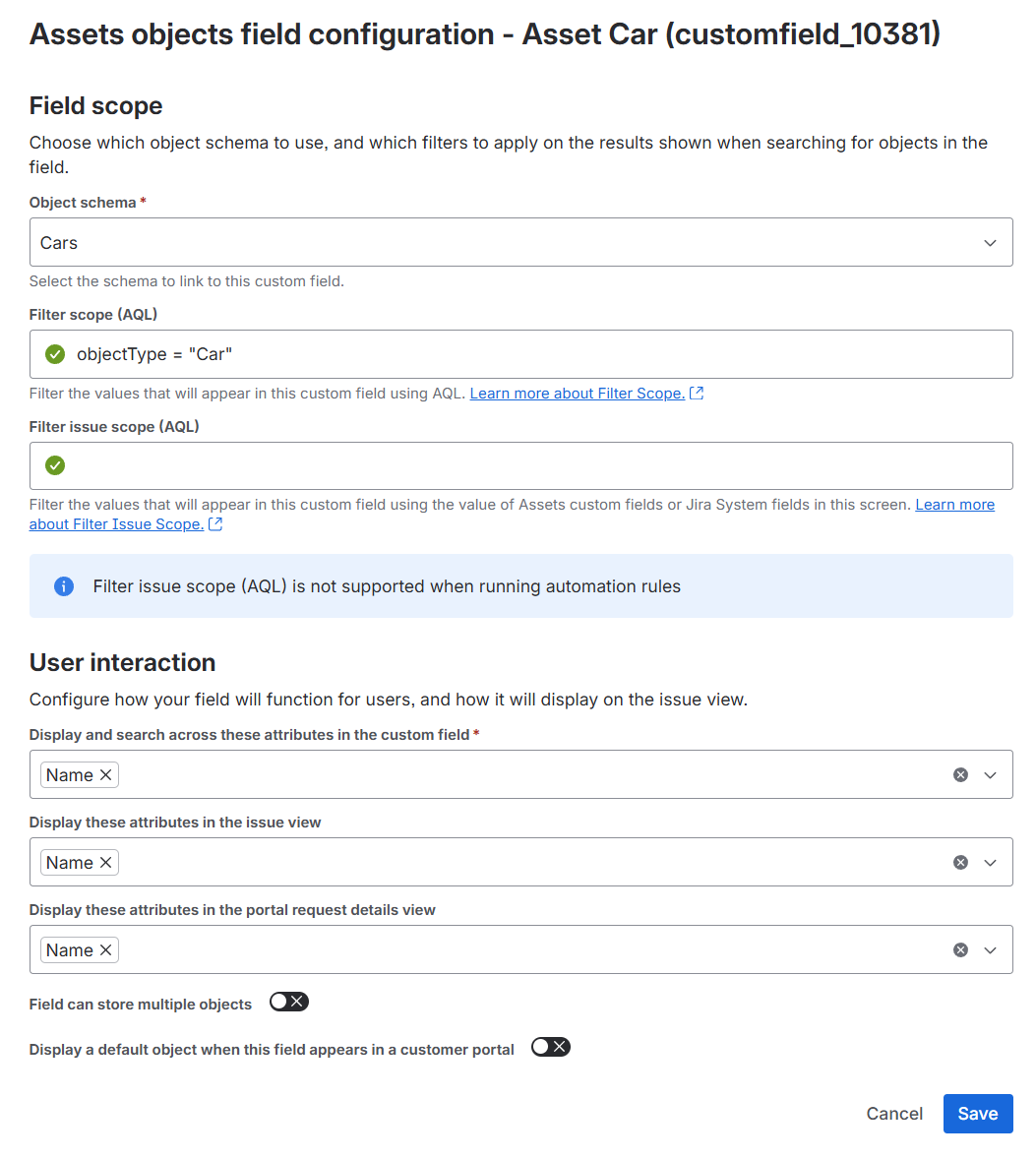
In the field configuration of this field, make sure you show the same Assets than the ones used in your Booking Flow.
Step 2: Jira Automation Configuration
Create a new Jira Automation rule with the following configuration:
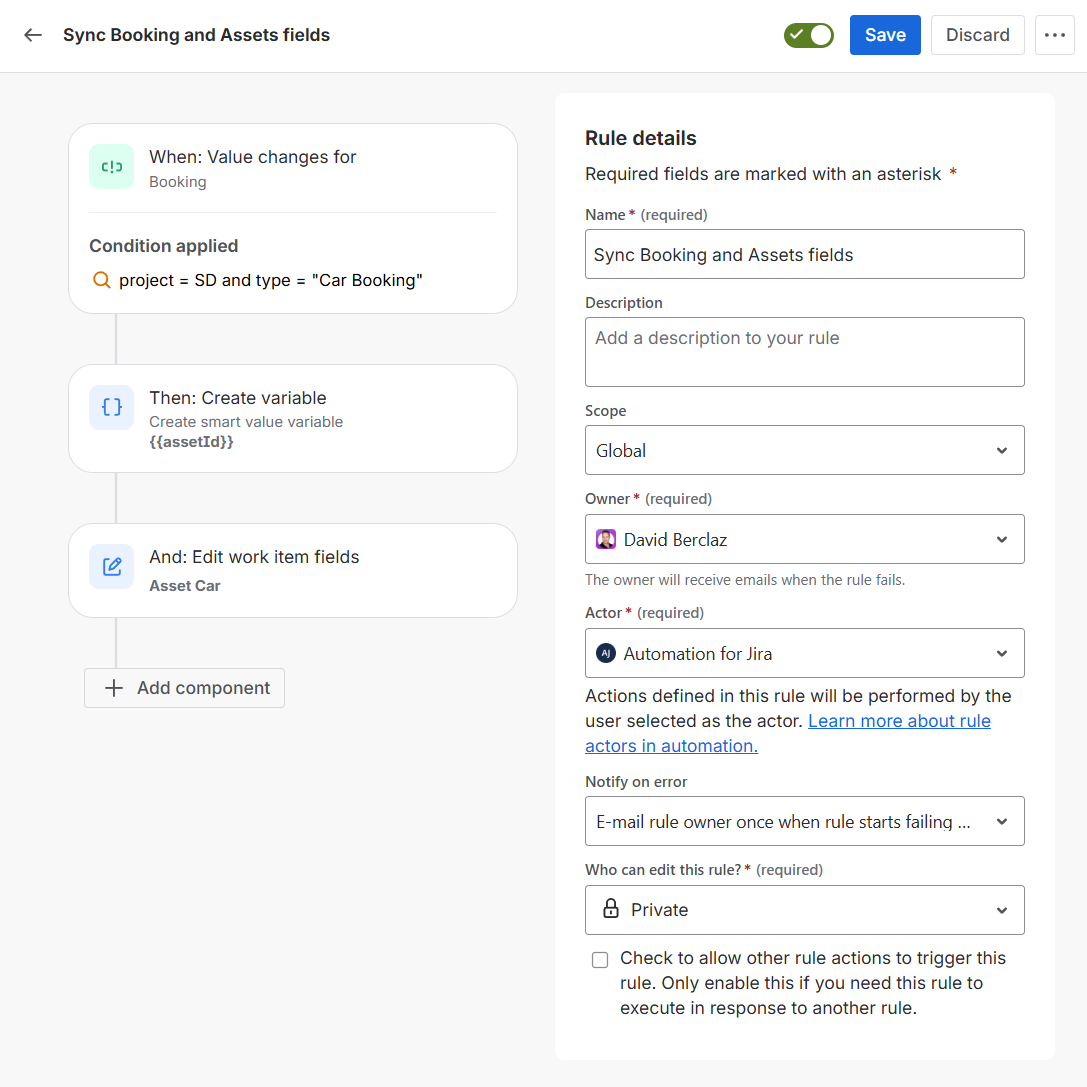
Trigger: Field value changed
The rule will be triggered when the Booking field is created or updated.
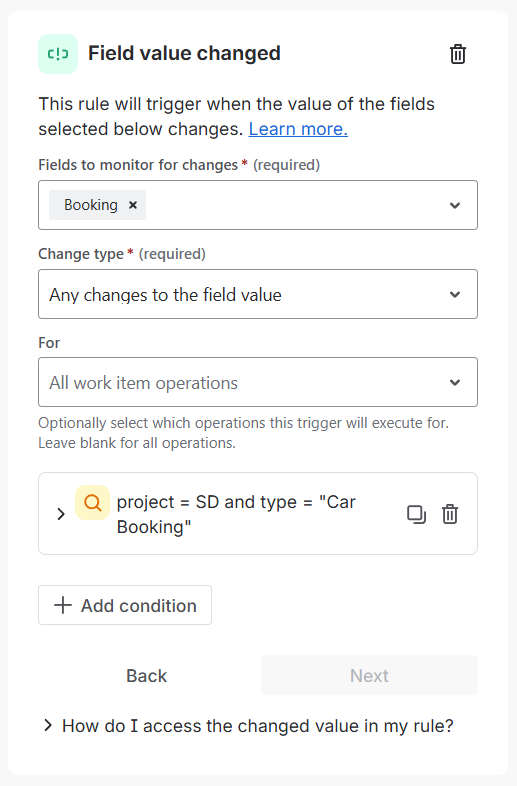
You can add a condition to only trigger the rule for the project and work type used by your Booking Flow.
Action: Create variable
Extract the Asset ID from the Booking field.
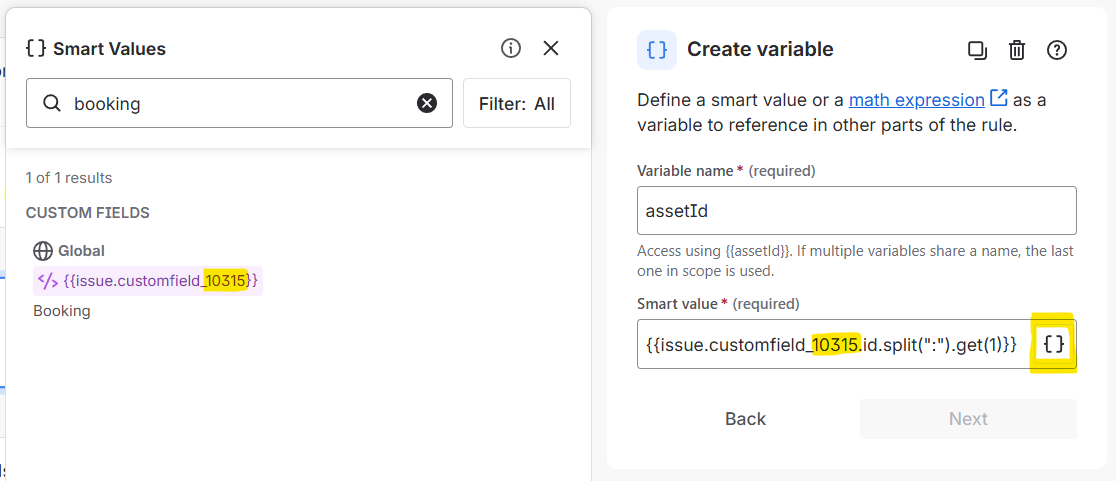
Variable name:
assetId
Smart value:
{{issue.customfield_XXXXX.id.split(":").get(1)}}
You can find the custom field ID when clicking on the smart value icon and searching for “Booking”.
Action: Edit work item
Update your Assets field with the correct Asset.
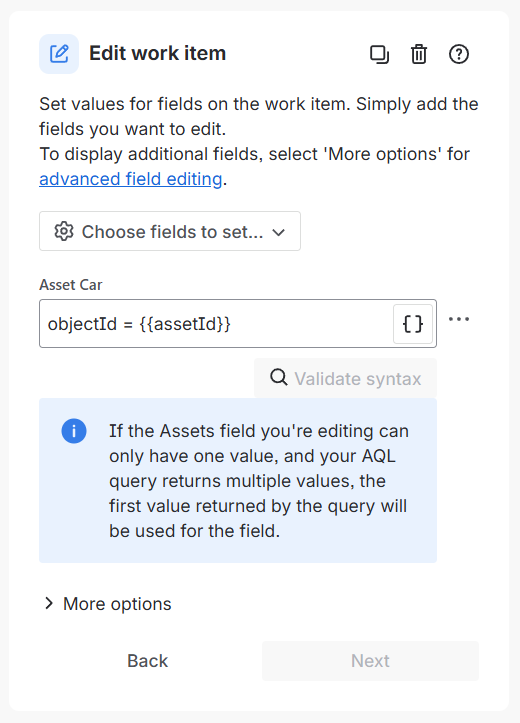
Asset field name:
objectId = {{assetId}}
Need Assistance?
For support with Jira Automation with Booking, reach out to our Customer Portal.