.svg)
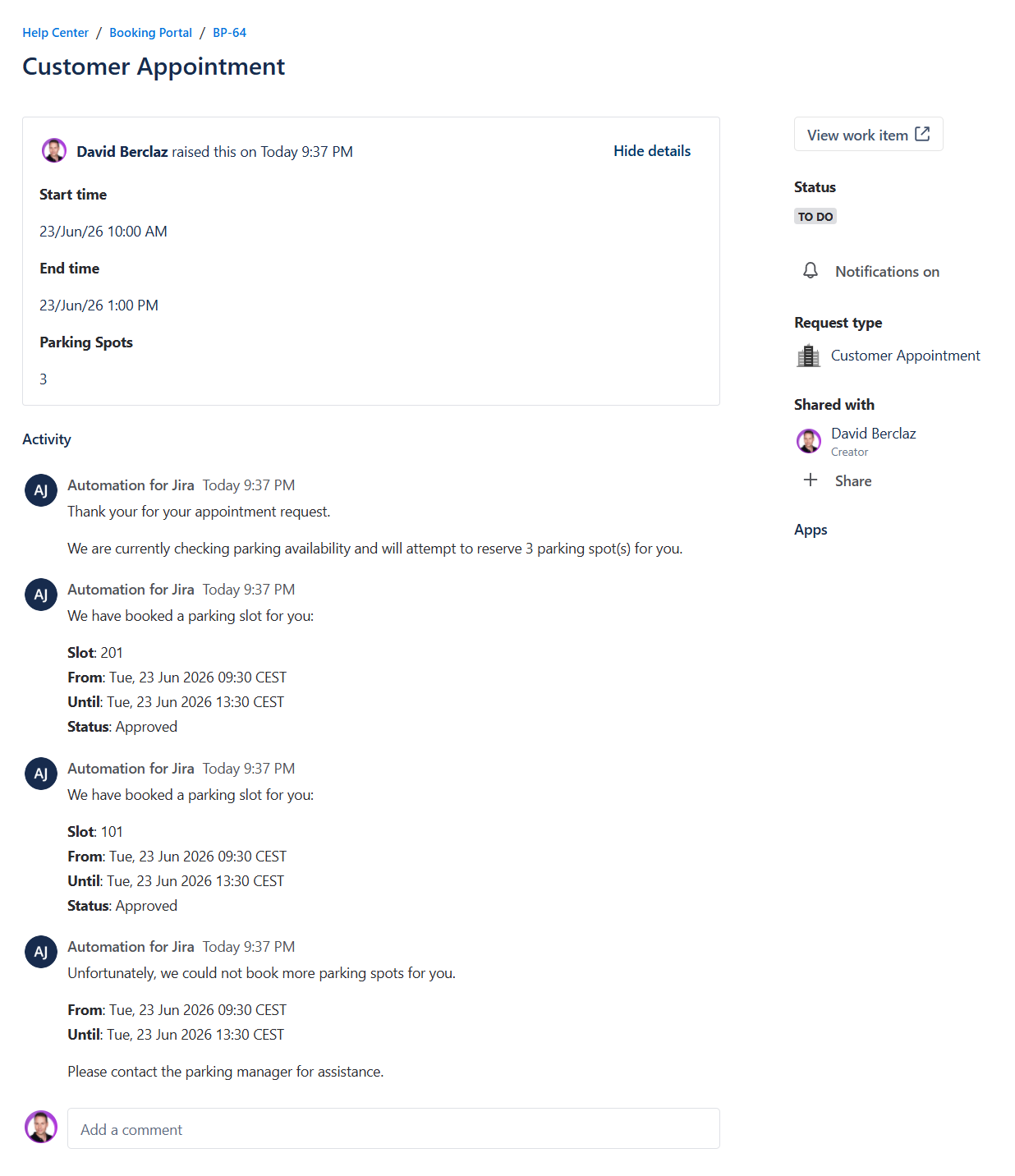
When a customer books an appointment, they can specify how many parking spots they need. Parking bookings are created automatically and include a 30-minute buffer before and after the appointment.
Requirements
-
Advanced Edition of Apwide Booking, which includes Automatic Resource Selection.
-
Booking Flow configured for parking spots.
-
JSM request configured for your Customer Appointments, using a Single Select custom field for the number of Parking Spots to be booked.
-
Access to Jira Automation.
-
Familiarity with creating automation flows and using smart values.
Configuration
For this use case, we'll need three Jira Automation rules:
-
Parking Spot Booking (Each) - Create a Parking Spot booking request and decrement the number of parking spots remaining to be booked in an issue property.
-
Parking Spot Booking (Start) - When a new Customer Appointment request includes parking spots, trigger the first Jira Automation and add a comment to inform the customer that parking availability is being checked.
-
Parking Spot Booking (Approval) - Each time a Parking Spot booking request is approved or rejected, trigger the first Jira Automation and add a comment to the linked Customer Appointment request.
1- Jira Automation: Parking Spot Booking (Each)
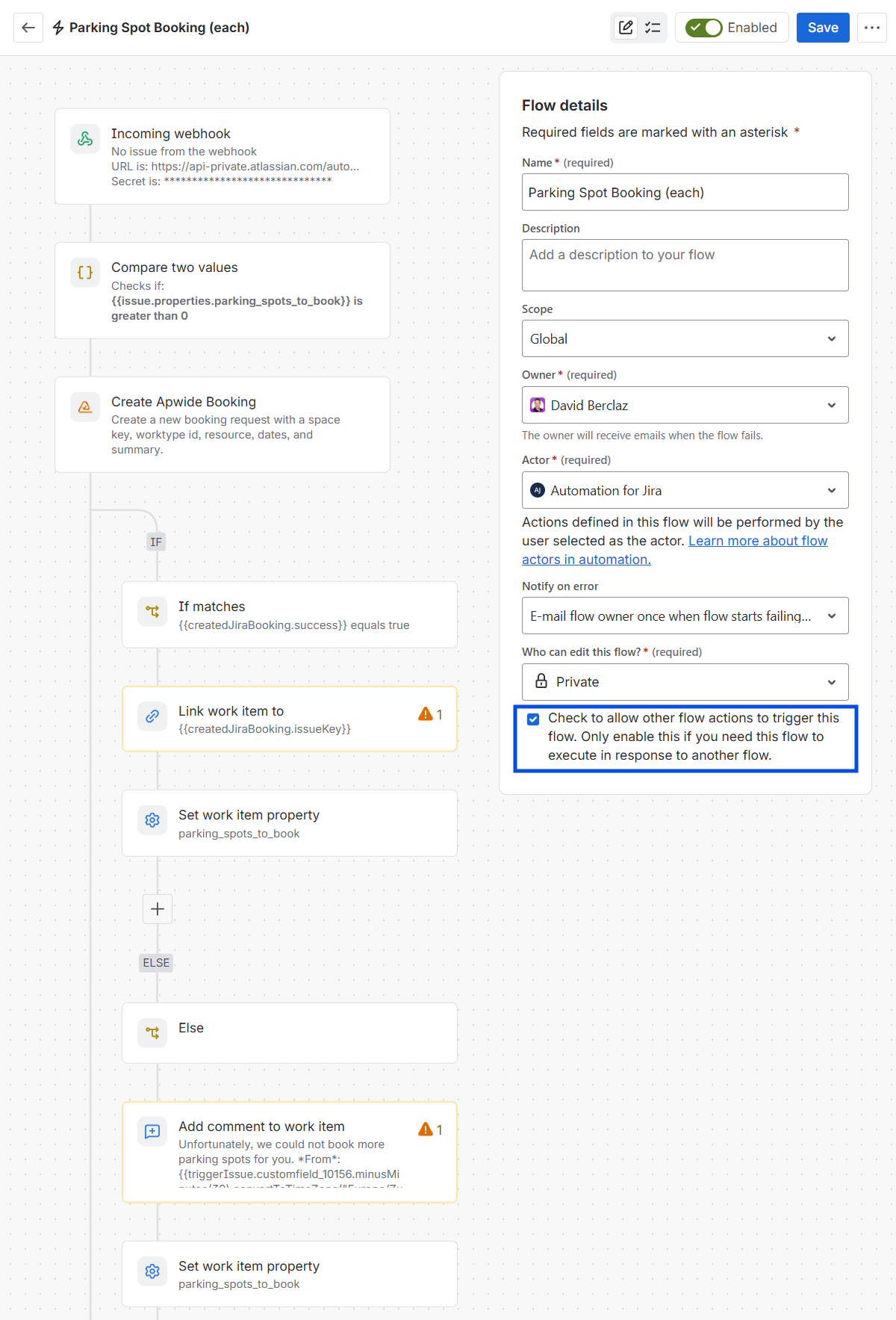
Each time we trigger this automation flow, create a Parking Spot booking request and decrement the number of parking spots remaining to be booked in an issue property.
Enable flow-to-flow triggers
Since this flow is triggered by the first flow, make sure to select the “Check to allow other flow actions to trigger this flow” checkbox in the Flow details.
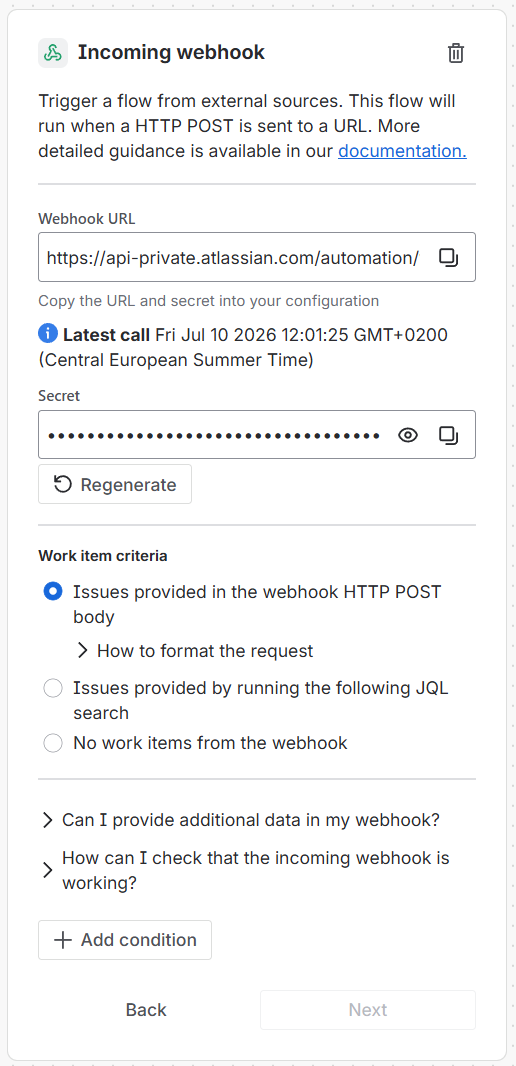
Trigger: Incoming webhook
The second and third Jira Automations will call this first Jira Automation via an incoming webhook.
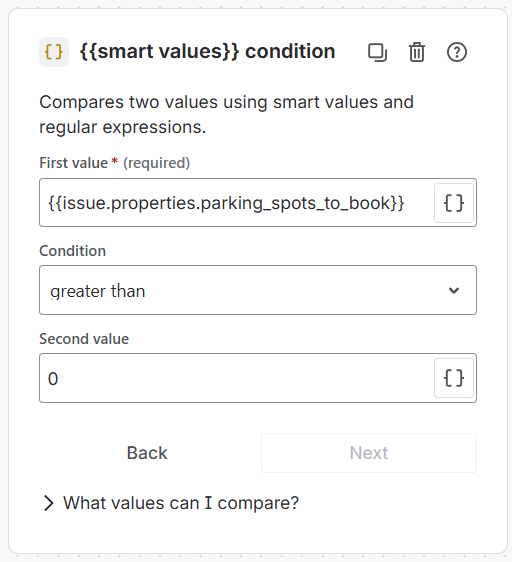
Condition: {{smart values}} condition
We check if the parking_spots_to_book issue property is greater than 0.
First value
{{issue.properties.parking_spots_to_book}}
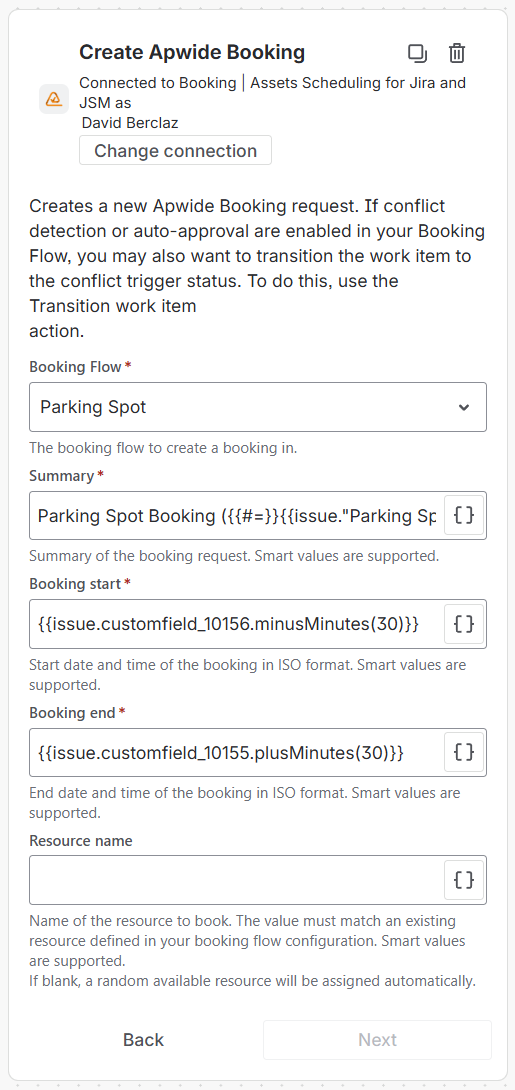
Action: Create Apwide Booking
We create a Parking Spot booking with a randomly selected available resource and a 30-minute buffer before and after the appointment.
Summary
Parking Spot Booking ({{#=}}{{issue."Parking Spots".value}} - {{issue.properties.parking_spots_to_book}} + 1{{/}}/{{issue."Parking Spots".value}})
Booking start
{{issue.customfield_10156.minusMinutes(30)}}
Booking end
{{issue.customfield_10155.plusMinutes(30)}}
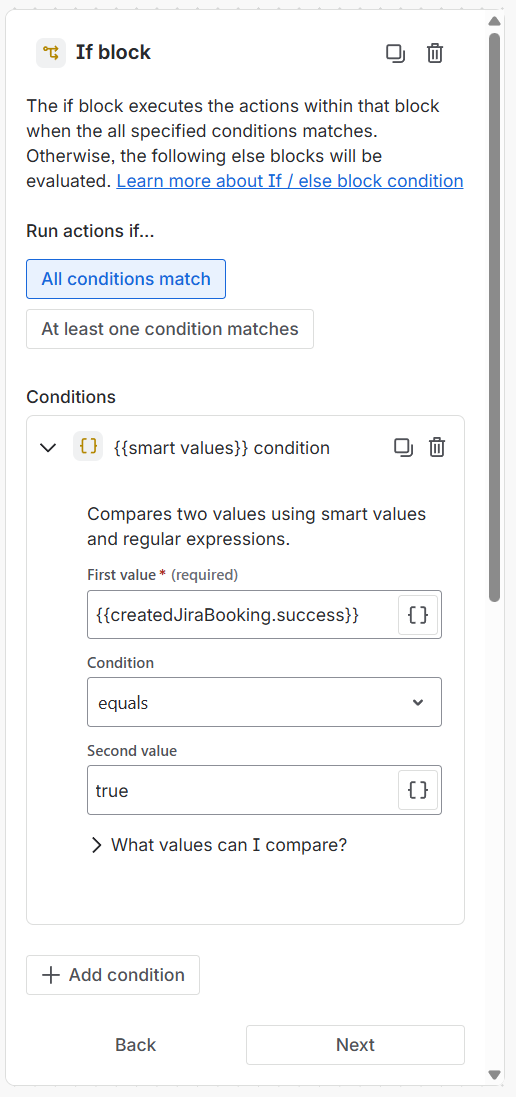
Condition: If block
We check if the booking was successfully created.
First value
{{createdJiraBooking.success}}
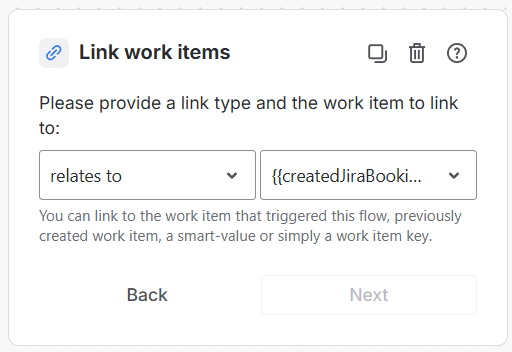
Action: Link work items
If the booking was successfully created, we link it to the current work item.
Linked work item
{{createdJiraBooking.issueKey}}
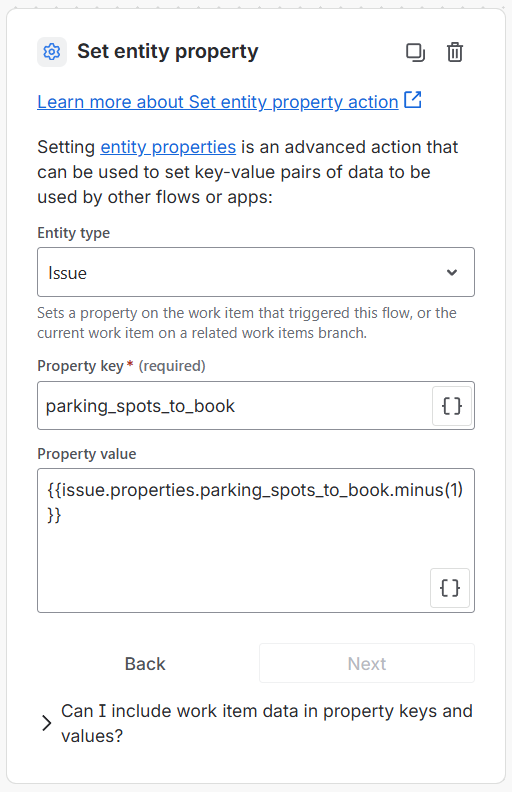
Action: Set work item property
If the booking is successfully created, we decrement the issue property by 1.
Property key
parking_spots_to_book
Property value
{{issue.properties.parking_spots_to_book.minus(1)}}
Condition: Else block
If the booking was not successfully created.
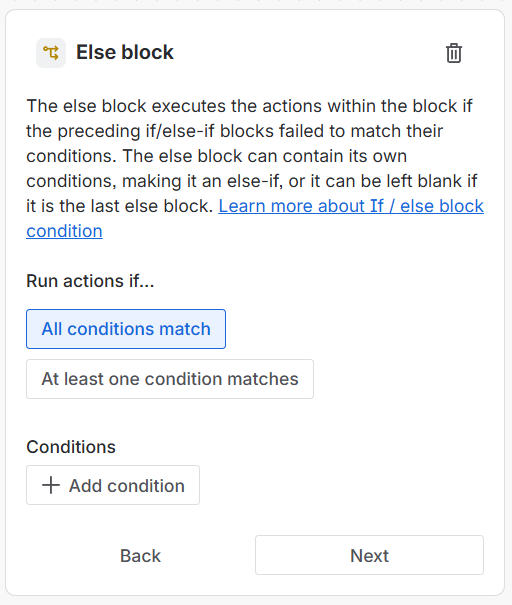
Action: Comment on work item
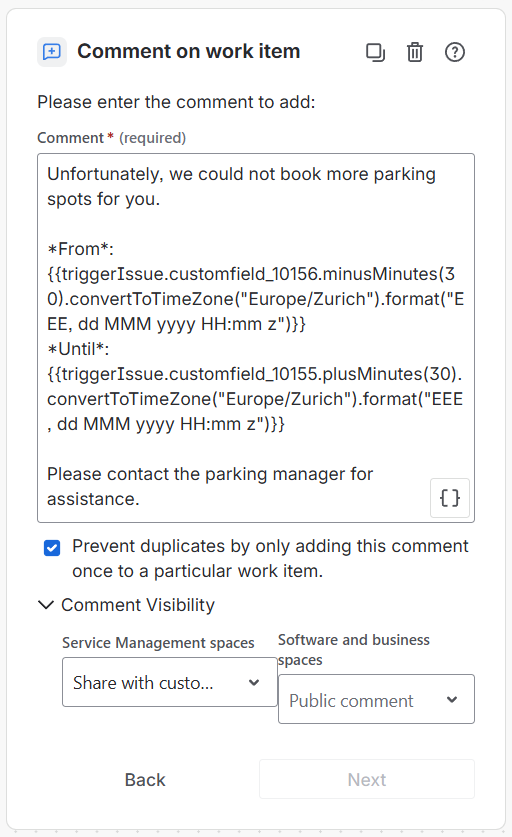
Comment
Unfortunately, we could not book more parking spots for you.

*From*: {{triggerIssue.customfield_10156.minusMinutes(30).convertToTimeZone("Europe/Zurich").format("EEE, dd MMM yyyy HH:mm z")}}
*Until*: {{triggerIssue.customfield_10155.plusMinutes(30).convertToTimeZone("Europe/Zurich").format("EEE, dd MMM yyyy HH:mm z")}}

Please contact the parking manager for assistance.
Action: Set entity property
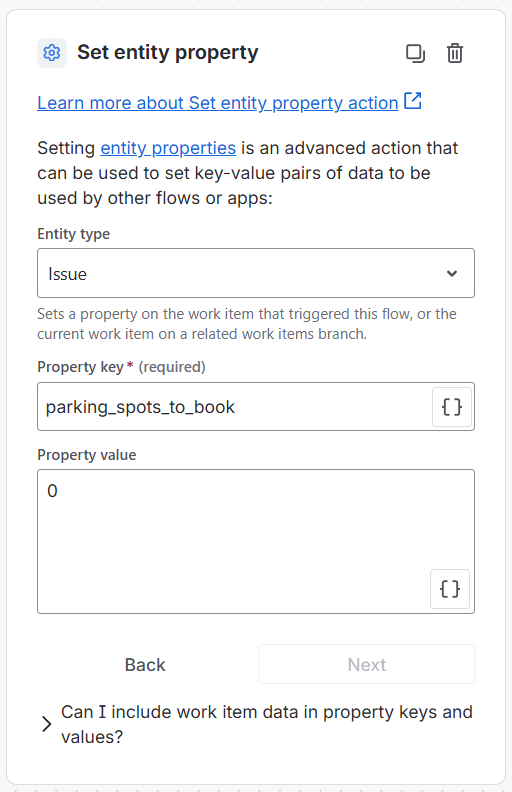
Property key
parking_spots_to_book
2- Jira Automation: Parking Spot Booking (Start)
When a new Customer Appointment request includes parking spots, add a comment to inform the customer that parking availability is being checked.
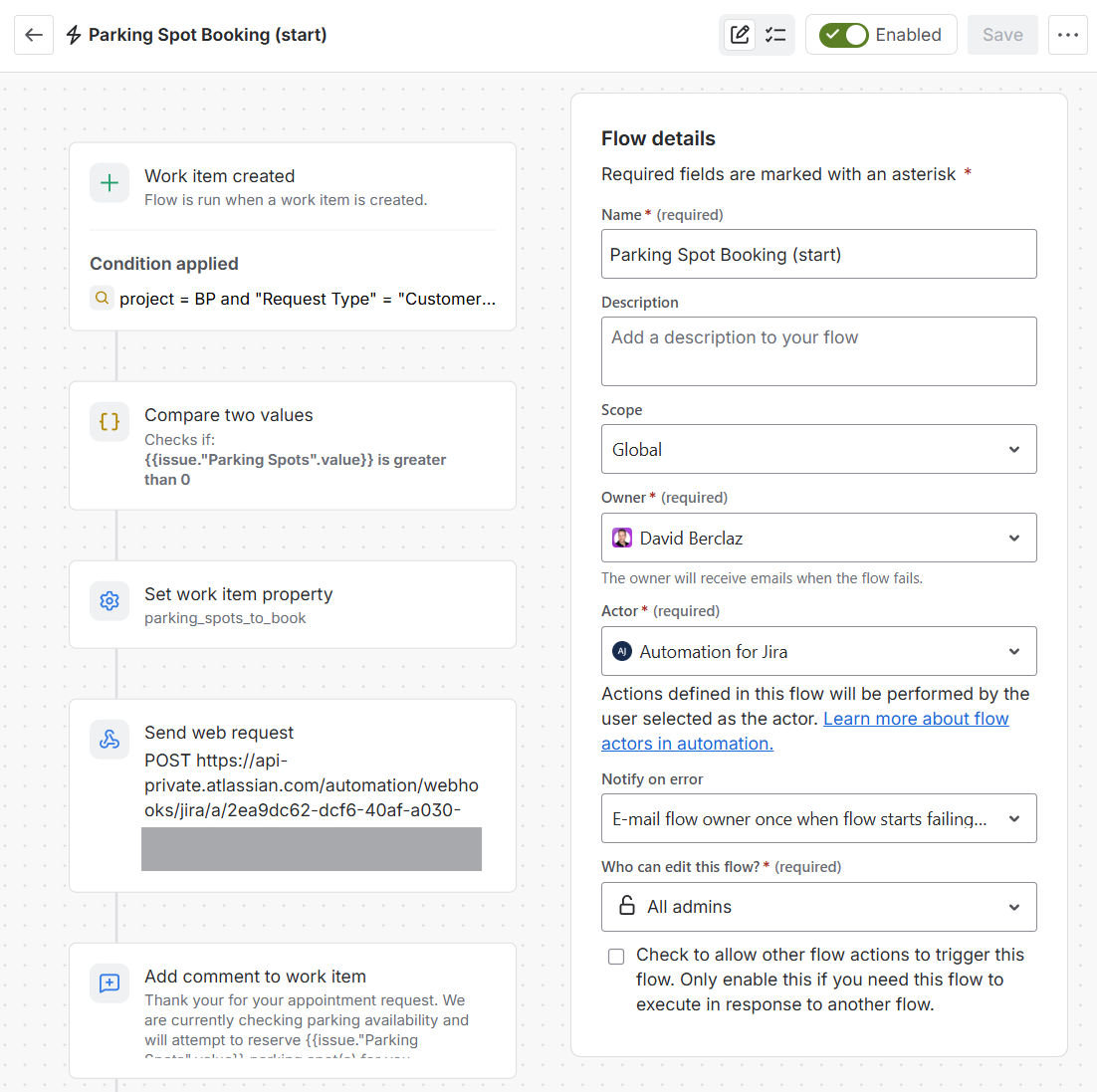
Trigger: Work item created
The flow will be triggered when the Customer Appointment request is created.
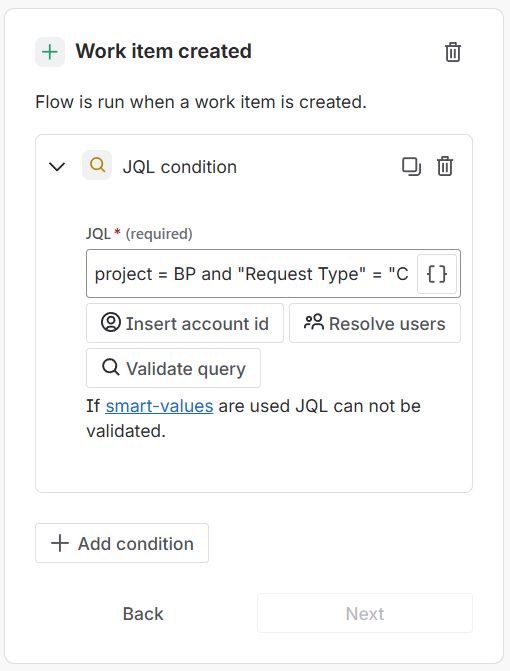
JQL Example
project = BP and "Request Type" = "Customer Appointment"
Condition: {{smart values}} condition
We check if the Parking Spots field value is greater than 0.
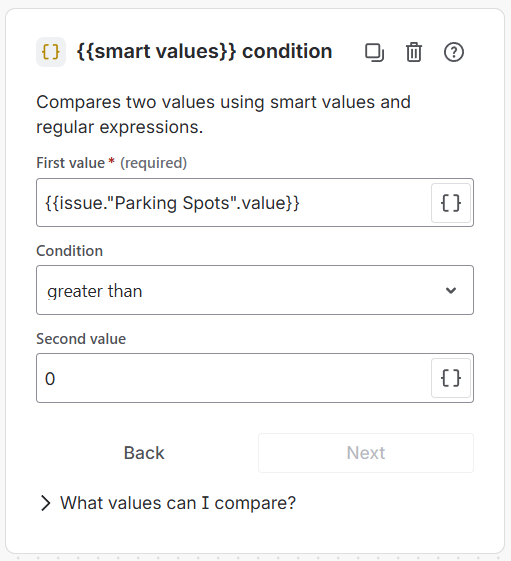
First value
{{issue."Parking Spots".value}}
Action: Set entity property
We initialize an issue entity property with the number of parking spots to book.
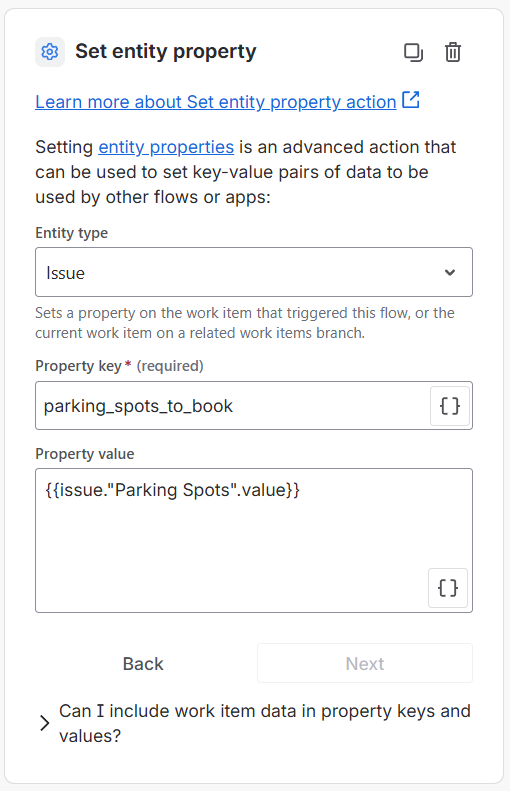
Property key
parking_spots_to_book
Property value
{{issue."Parking Spots".value}}
Action: Send web request
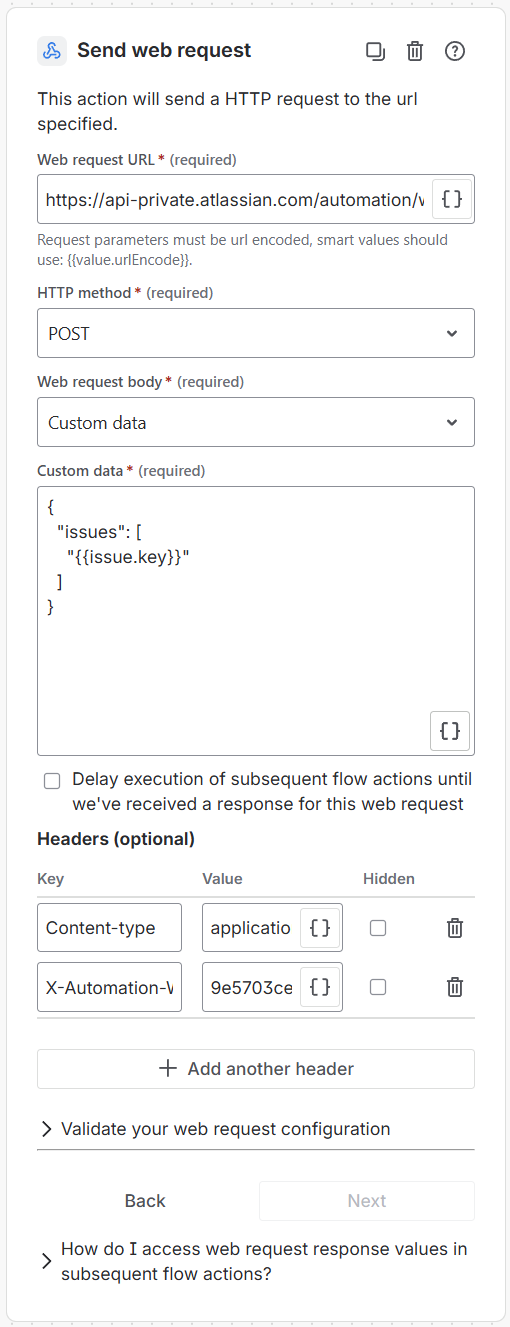
Web request URL
< Webhook URL of your first Jira Automation >
Custom data
{
  "issues": [
    "{{issue.key}}"
  ]
}
Header key
Content-type
Header value
application/json
Header key
X-Automation-Webhook-Token
Header value
< Secret of your first Jira Automation >
Action: Comment on work item
We add a comment on the work item, that will trigger the next Jira Automation.
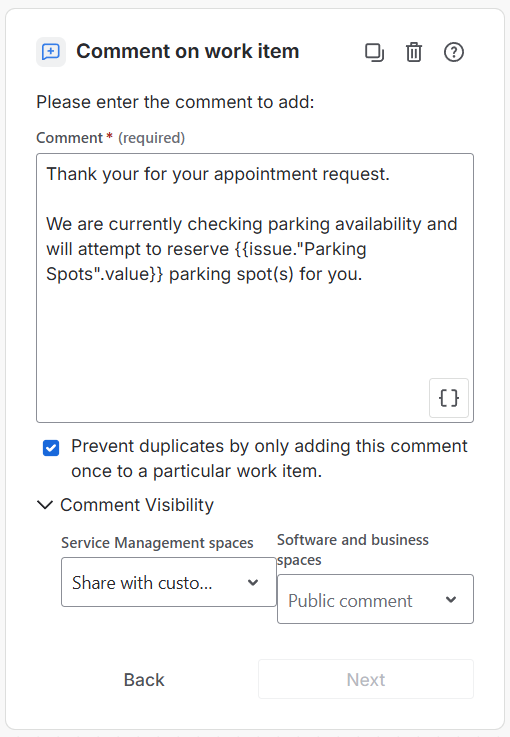
Comment
Thank your for your appointment request.

We are currently checking parking availability and will attempt to reserve {{issue."Parking Spots".value}} parking spot(s) for you.
3- Jira Automation: Parking Spot Booking (Approval)
Each time a Parking Spot booking request is approved or rejected, add a comment to the linked Customer Appointment request.
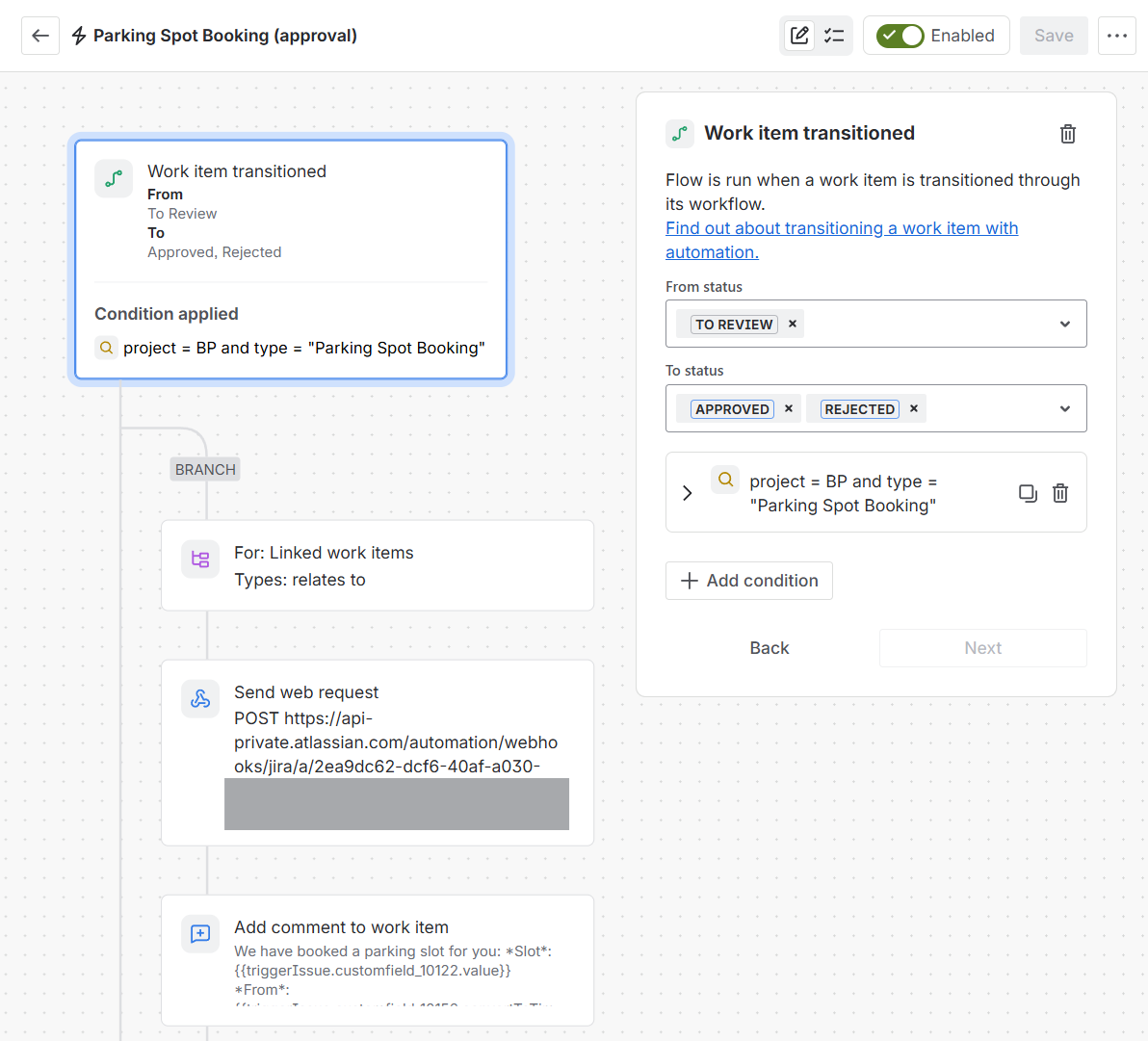
Trigger: Work item transitioned
The flow will be triggered when the Parking Spot Booking is approved or rejected.
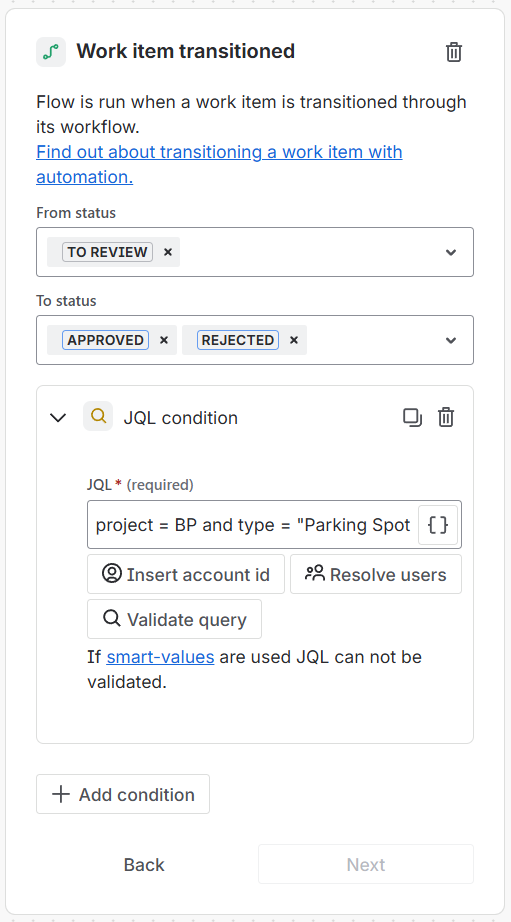
JQL
project = BP and type = "Parking Spot Booking"
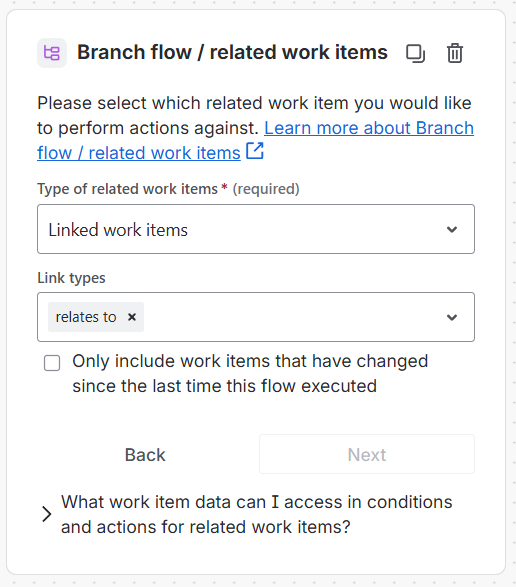
Branch: Branch flow / related work items
We create a branch for the Customer Appointment linked to the Parking Spot Booking.
Action: Send web request
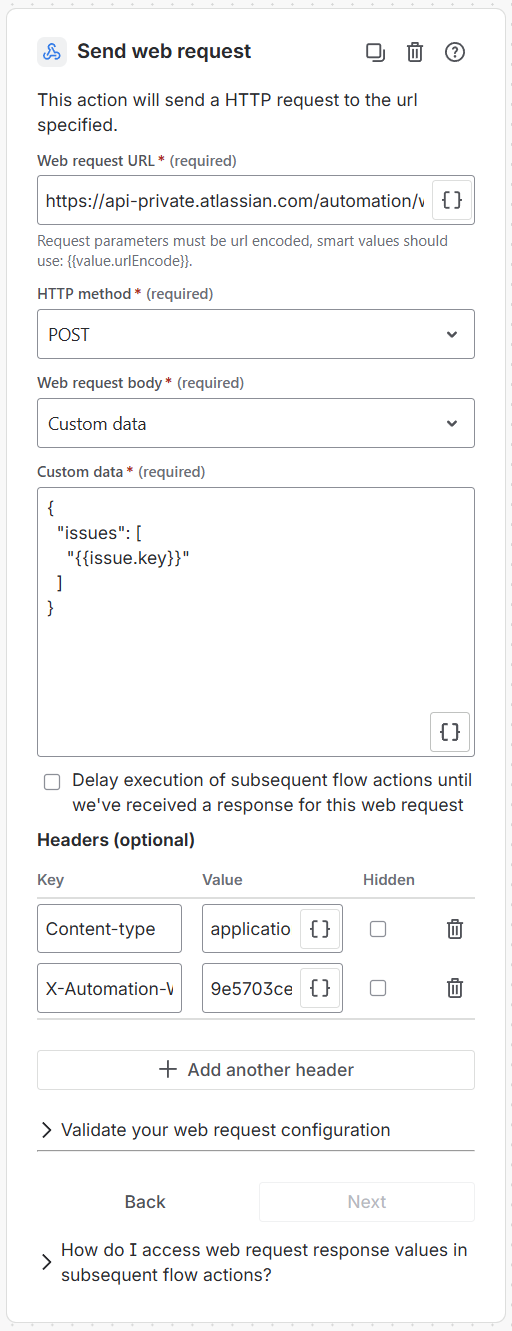
Web request URL
< Webhook URL of your first Jira Automation >
Custom data
{
  "issues": [
    "{{issue.key}}"
  ]
}
Header key
Content-type
Header value
application/json
Header key
X-Automation-Webhook-Token
Header value
< Secret of your first Jira Automation >
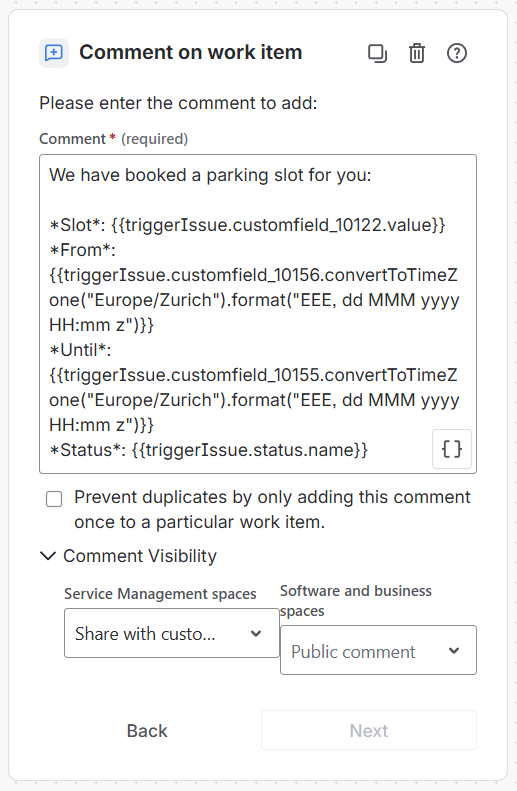
Action: Comment on work item
We add a comment to the Customer Appointment request, which triggers the creation of the next Parking Spot booking, if required.
Need Assistance?
For support with Jira Automation with Booking, reach out to our Customer Portal.