.svg)
The Resources tab allows you to define which resources can be booked, configure resource filters and capacity, and choose how resources are assigned.
Source
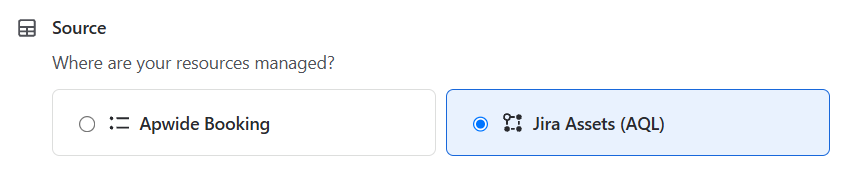
Choose where your resources are managed:
-
Apwide Booking Create and manage resources directly in Booking.
-
Jira Assets (AQL) Use Jira Assets objects as bookable resources.
Important
Changing the source may prevent existing bookings from being detected as conflicts.
Resources
Only for Apwide Booking
Click Manage resources to add, edit, or remove resources from your Booking Flow.
At least one resource must be configured before saving.
Configuration
Configure the following settings:
-
Resource field: Jira custom field used to store the booked resource (read-only).
-
Resource type: Type of resource being booked (e.g., Car, Desk, or Projector).
-
AQL query (only for Jira Assets (AQL) ): Defines which Jira Assets objects can be booked.
For example:
objectSchema = "Cars" AND objectType = "Car"
Click Test to validate the AQL query and display the number of matching resources.
Filters
Only for Jira Assets (AQL)
Select which Jira Assets attributes users can filter when choosing a resource.
-
Click Add a resource filter.
-
Select an attribute.
-
Drag and drop filters to change their display order.
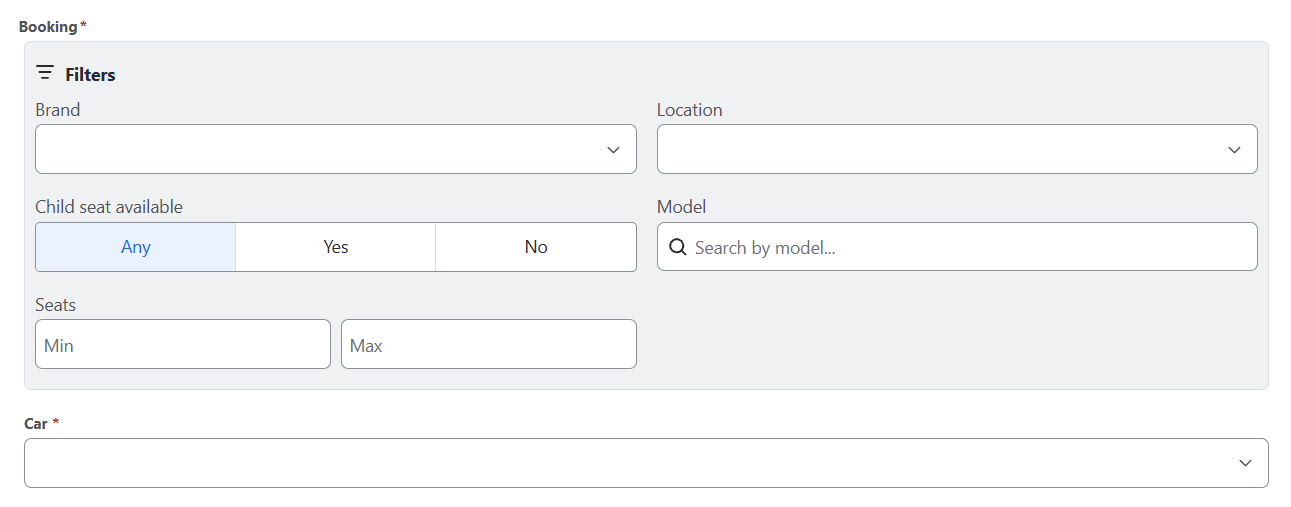
Supported attribute types include Select, Boolean, Text, Integer, Float, Email, URL, and IP Address.
Some types, such as Date and Textarea, are not yet supported. Contact us if you need them.
Capacity
ADVANCED EDITION and only for Jira Assets (AQL)
Choose how resource capacity is managed:
-
No capacity limit: A resource can only be booked once during an overlapping time range.
-
Capacity attribute: Select a Jira Assets Integer attribute to define how many units of capacity each resource provides.
For example, a parking resource with a capacity of 10 can accommodate up to 10 simultaneous bookings of one unit each.


Selection
ADVANCED EDITION
Choose how a resource is assigned when creating a booking:
-
Manual selection: Users select the resource they want to book.
-
Automatic selection (random): Booking automatically assigns an available resource.
Note: Automatic selection is unavailable when resource capacity is enabled or the Resource Availability Booking Experience is used. Manual selection is used instead.

Additional Resources
ADVANCED EDITION
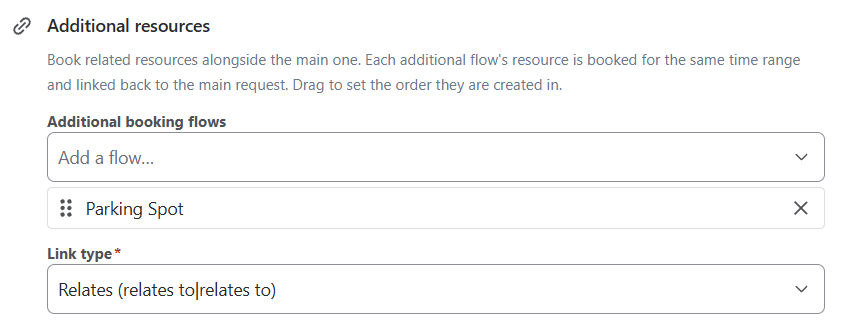
Automatically book related resources alongside the main one.
For example, booking a conference room can also create bookings for a projector and video conferencing equipment.
-
Click Add a flow and select another Booking Flow.
-
Add more flows if needed.
-
Drag and drop the selected flows to define the order in which additional bookings are displayed.
Additional bookings use the same time range as the main booking and are linked to the original Jira work item.